Connect a client
Every client needs the server URL. Clients that support MCP authorization sign in to Masttro with OAuth, so no secret is stored in a configuration file.
Your Masttro user needs the MCP Server permission, which a platform administrator grants on your user profile. See Before you start: enable MCP access.
Data returned to an external client leaves the Masttro security perimeter. Read Data security and third-party processing before enabling access.
Claude
Masttro is available in Claude’s connector directory, in the Claude apps and on the web. How you add it depends on your Claude plan.
Individual plans
-
In Claude, open Settings → Connectors and select Browse connectors.
-
Search for Masttro, open the listing and select Connect.
-
Complete the Masttro authorization flow, signing in with the Masttro user that has the MCP Server permission.
-
Enable the connector for a conversation from the tools menu in the chat input.
Organization plans
On Team and Enterprise plans, an organization Owner must first add Masttro to the organization. Members can connect only after that.
Owners add the connector once for the organization:
-
Open Organization settings → Connectors and select Browse connectors.
-
Search for Masttro, open the listing and select Add to organization. No Masttro sign-in is needed at this stage.
Members then connect with their own Masttro user:
-
Open Settings → Connectors and find Masttro among the connectors available to your organization.
-
Select Connect and complete the Masttro authorization flow.
-
Enable the connector for a conversation from the tools menu in the chat input.
Adding the connector to an organization does not grant access to Masttro data. Each member authenticates individually, and their access is governed by their own Masttro user and MCP Server permission.
Alternative: add by URL
If the directory isn’t available in your environment, or your organization requires a custom connector, add Masttro by URL. On Team and Enterprise plans, an Owner adds custom connectors under Organization settings → Connectors, and members then connect as above.
-
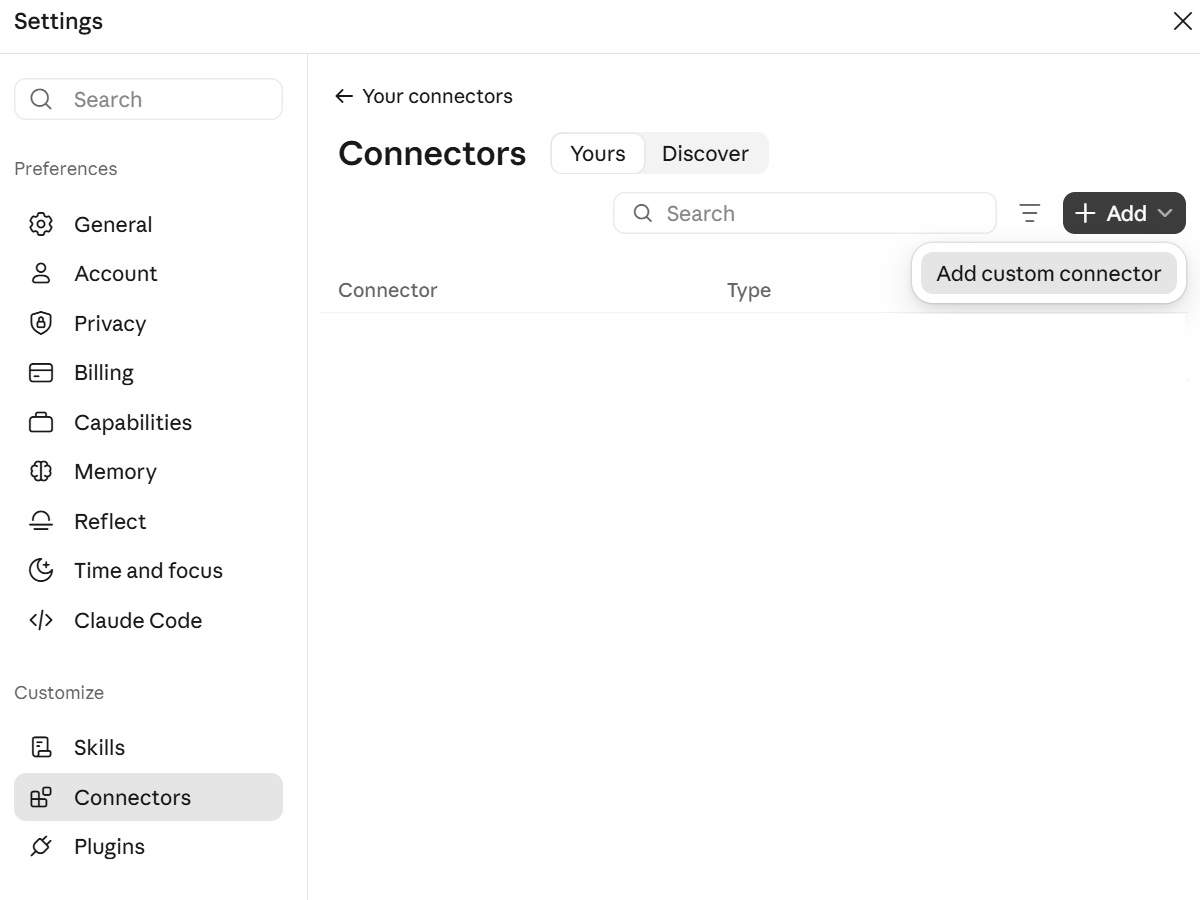
In Claude, open Settings → Connectors, select Add and choose Add custom connector.
-
Enter a name such as
Masttroand the Masttro MCP Server URL above, then select Continue.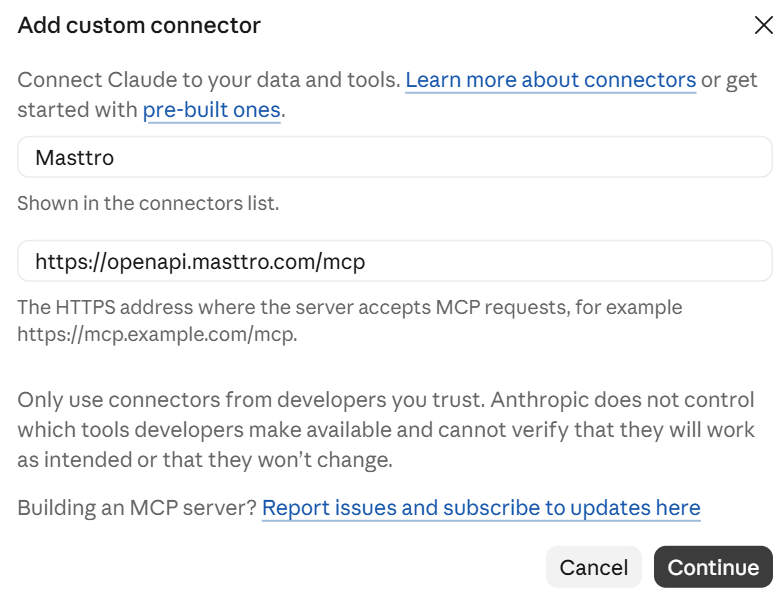
-
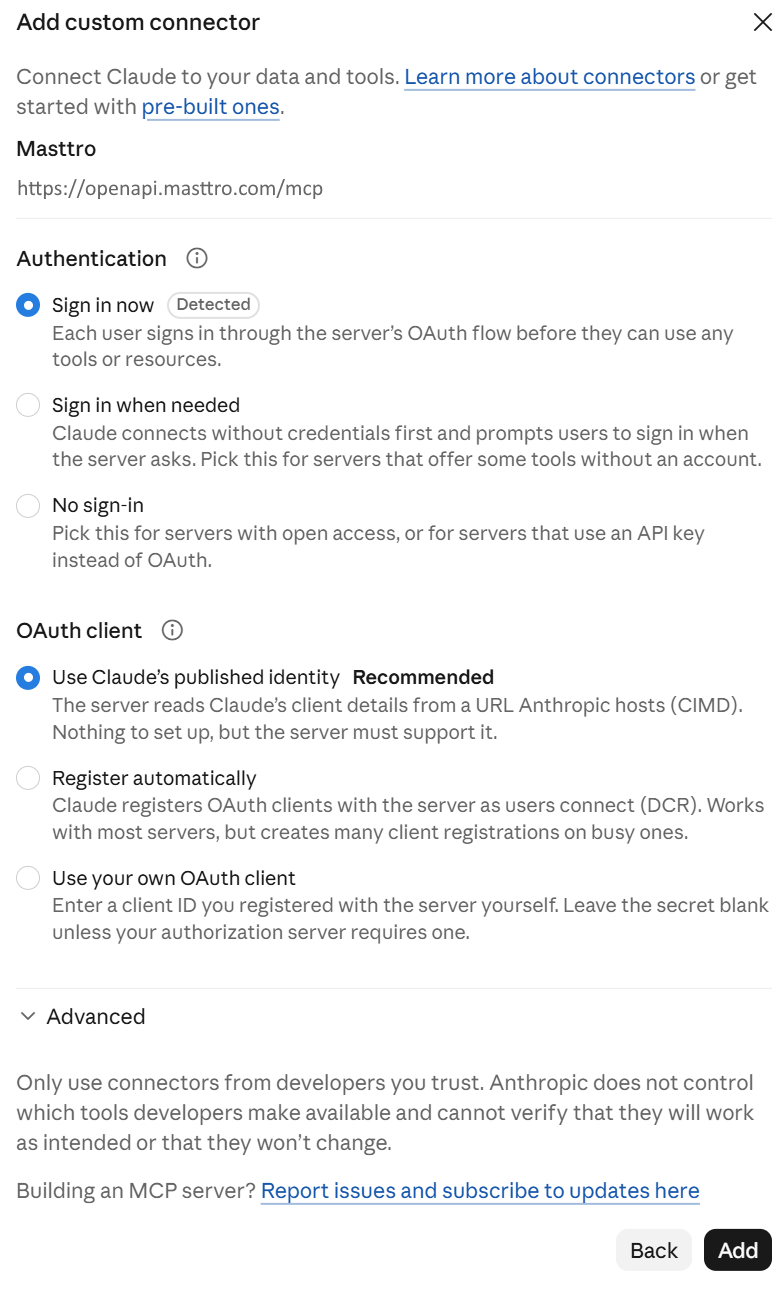
Under Authentication keep Sign in now, and under OAuth client keep Use Claude’s published identity. Select Add.
-
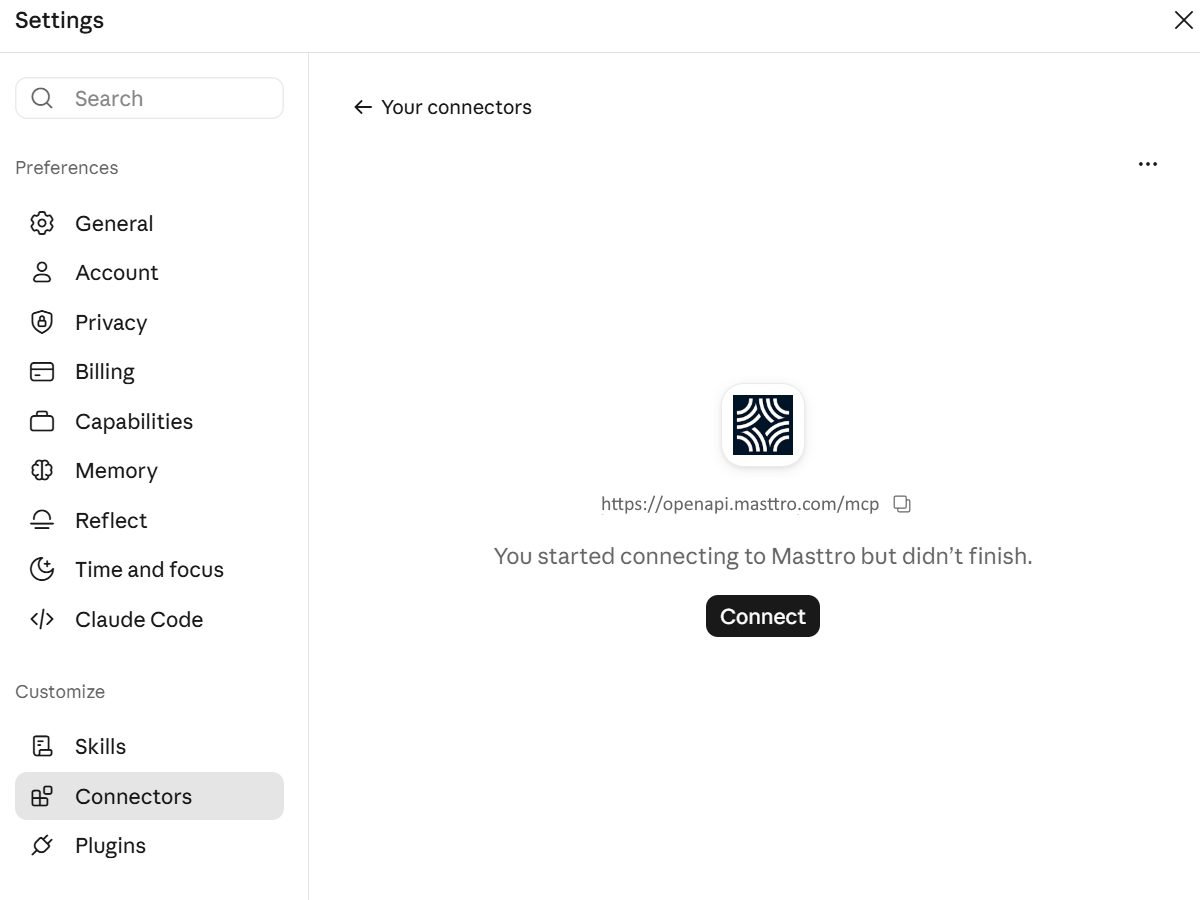
Select Connect and complete the Masttro authorization flow.
-
Enable the connector for a conversation from the tools menu in the chat input.
Local bridge configurations such as mcp-remote are documented under Compatibility for environments that require them.
ChatGPT
ChatGPT supports remote MCP servers as custom plugins:
-
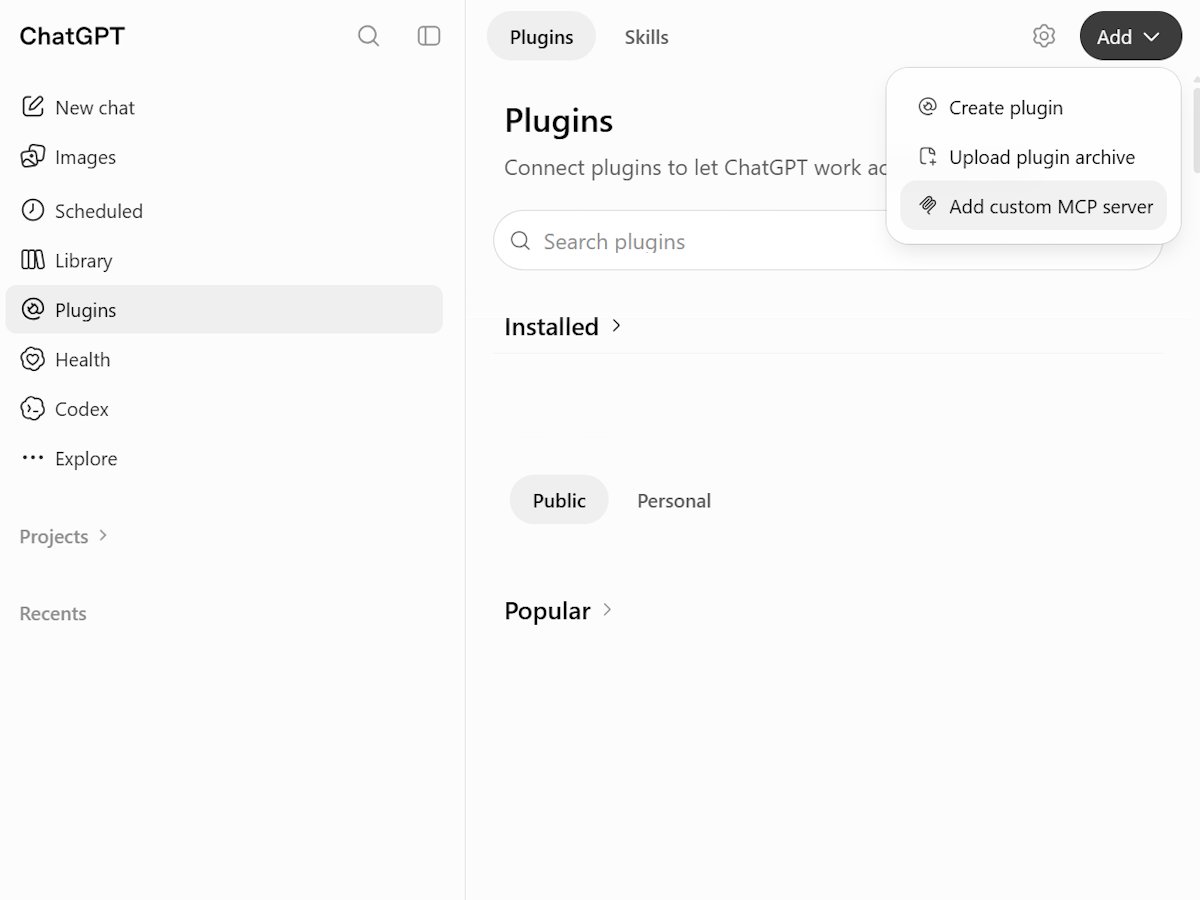
In ChatGPT, open Plugins from the sidebar, select Add and choose Add custom MCP server.
-
Enter a name such as
Masttro, keep Server URL selected and enter the Masttro MCP Server URL above. Keep Authentication set to OAuth, check I understand and want to continue, then select Create as a plugin.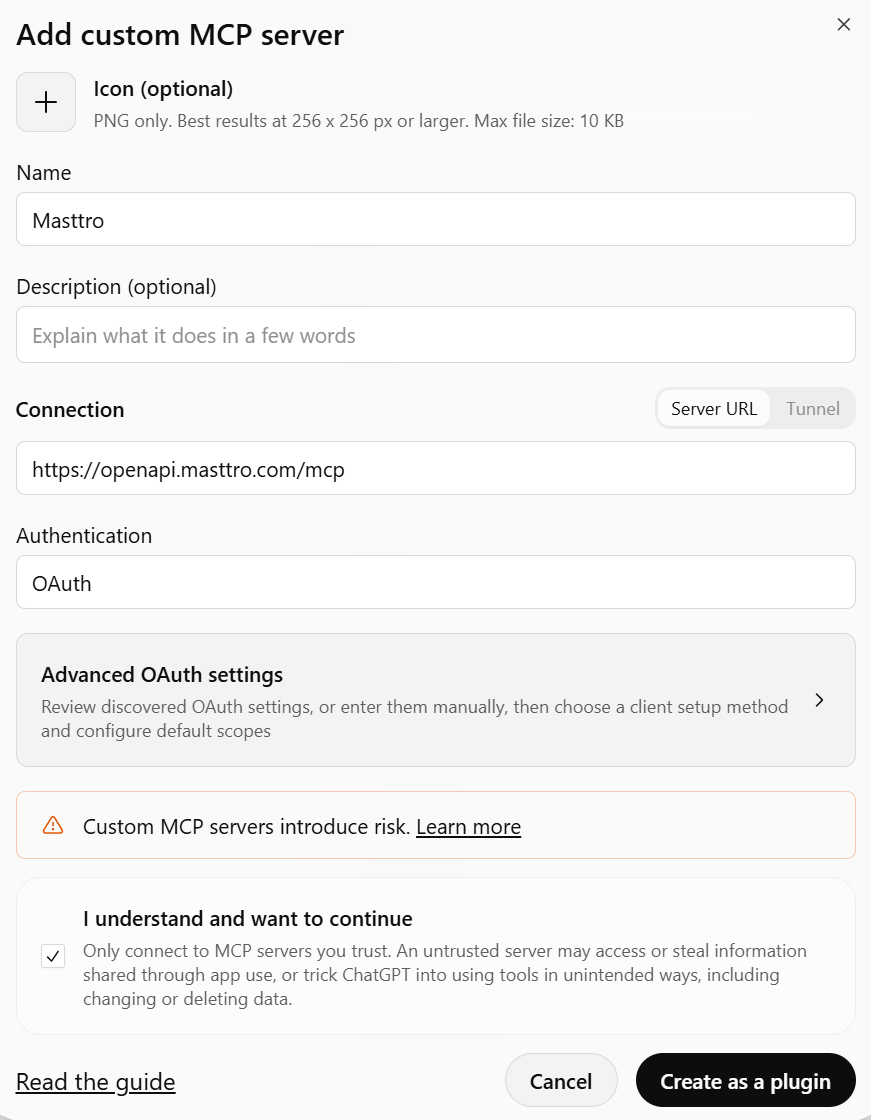
-
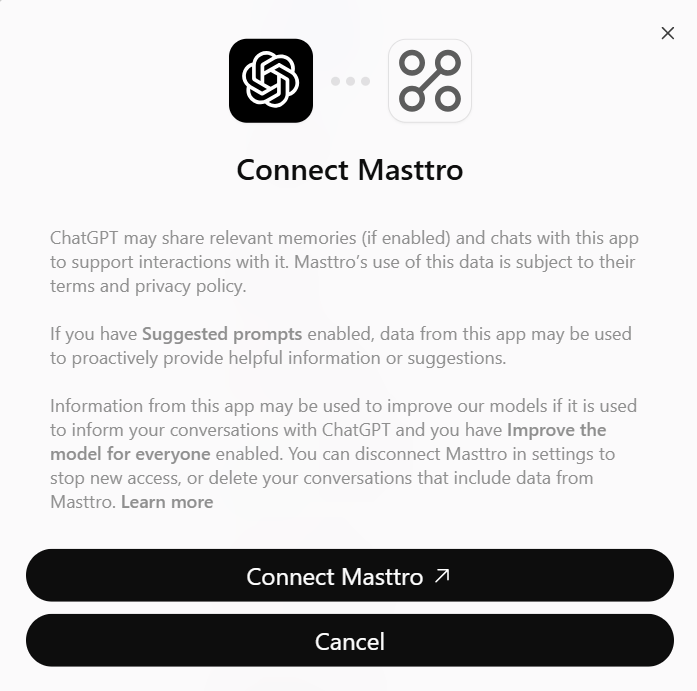
Select Connect Masttro and complete the Masttro authorization flow.
-
Enable the Masttro plugin for a conversation from the chat input.
Claude Code
Add the server from your terminal:
Then run /mcp inside Claude Code, select masttro and choose Authenticate. Claude Code opens your browser to complete the Masttro authorization flow and refreshes access automatically.
Add --scope user to make it available in every project. To share the configuration with your team, commit a .mcp.json. It contains no credentials, because each developer authenticates individually:
VS Code and GitHub Copilot
Create .vscode/mcp.json in your workspace:
Open the file and select Start above the server entry. VS Code asks you to sign in to Masttro and stores the resulting token securely. Then use Copilot Chat in Agent mode. The Masttro tools are listed under the tools button.
Your own code (MCP SDKs)
The official MCP SDKs connect over Streamable HTTP. For server-to-server integrations with no user present, use a bearer token from POST /Auth/Token and refresh it before it expires.
Raw response format
Responses may arrive as a server-sent event stream (event: message followed by a data: line holding the JSON-RPC message). A successful tools/call result carries the endpoint's JSON as text:
A failed call returns "isError": true and the error message as text:
Legacy compatibility: 2025-06-18
Clients on the 2025-06-18 revision start with an initialize request. The server stays stateless, so no session id needs to be carried between calls. See Supported protocol revisions.
Compatibility: header-based configuration
These configurations are a transitional compatibility method for clients or environments that cannot complete the OAuth flow. They send a fixed Authorization header that you supply. Reference the value from an environment variable or the client’s secret prompt, and never write it into a shared file. Use Bearer <token>, and re-issue it when it expires.
Claude Desktop with mcp-remote
The mcp-remote bridge runs locally and adds the authorization header. You need Node.js 18 or later. Open Settings → Developer → Edit Config and add:
Keep Authorization:${MASTTRO_AUTH} exactly as written, with no space after the colon. This file holds a credential, so restrict access to it and restart Claude Desktop after each change.
Claude Code with a header
In a shared .mcp.json, read the value from each developer's environment with "headers": { "Authorization": "${MASTTRO_AUTH}" }.
VS Code with a header
VS Code prompts for the value once and stores it securely, so the secret never lands in the file:
Troubleshooting
| Symptom | Fix |
|---|---|
Connection fails with 401 | With OAuth, reconnect and complete the authorization flow again, and check that your Masttro user is enabled for MCP access. With a header, check the value: bearer tokens expire after 60 minutes. |
Sign-in fails at your identity provider (for example Entra AADSTS50011 or Okta "redirect_uri is not whitelisted") | Your organization uses SSO and the Masttro OAuth redirect URI is not yet allowed. Your identity provider administrator must add it to the Masttro SSO application. See SSO prerequisite. |
Entra ID AADSTS9002327 during sign-in | The Masttro OAuth redirect URI is registered as a single-page application. Your Entra administrator must move it to Mobile and desktop applications. See Microsoft Entra ID. |
| Tools work, then authentication expires | Reauthenticate or refresh the short-lived token using the supported client flow. |
Slow responses or 429 | Requests are processed one at a time per user and limited to 60 per minute, shared with REST. Ask the assistant for fewer, broader calls. |
| Claude cannot reach the connector | Claude connects from Anthropic's cloud. Check that your network policy allows those connections to the Masttro MCP Server. |
| ChatGPT cannot reach the server | ChatGPT connects from OpenAI's infrastructure. Check that your network policy allows those connections to the Masttro MCP Server. |
Claude Desktop shows no tools (mcp-remote) | Check that Node.js is installed and on your PATH, then check the logs under Settings → Developer. |
Third-party applications
Masttro MCP may be configured in compatible third-party MCP clients. Availability, features, authentication requirements, data handling and behavior within those applications are controlled by the respective third-party provider. Unless expressly stated otherwise, compatibility with a third-party MCP client does not constitute a native marketplace integration, endorsement or commercial partnership between Masttro and that provider.